How Verso Manuscript works | Write and shape a book
How it works Write and shape a book

The book stays together as you work.

Verso Manuscript keeps the writing, the structure and the material for a book in one book folder. Write in a scene, step back to see the whole book, and come back to the same text. Every view shows the same book, so there are no copies to keep in step.

  1. {{ c.n }}{{ c.title }}{{ c.ch }}
Ch. 1Views

One book, more than one way to see it.

Read a chapter through in book order, look at its scenes as cards, or compare them in the Outliner. Titles, order, synopses, status and text are shared by every view. Only what you see changes.

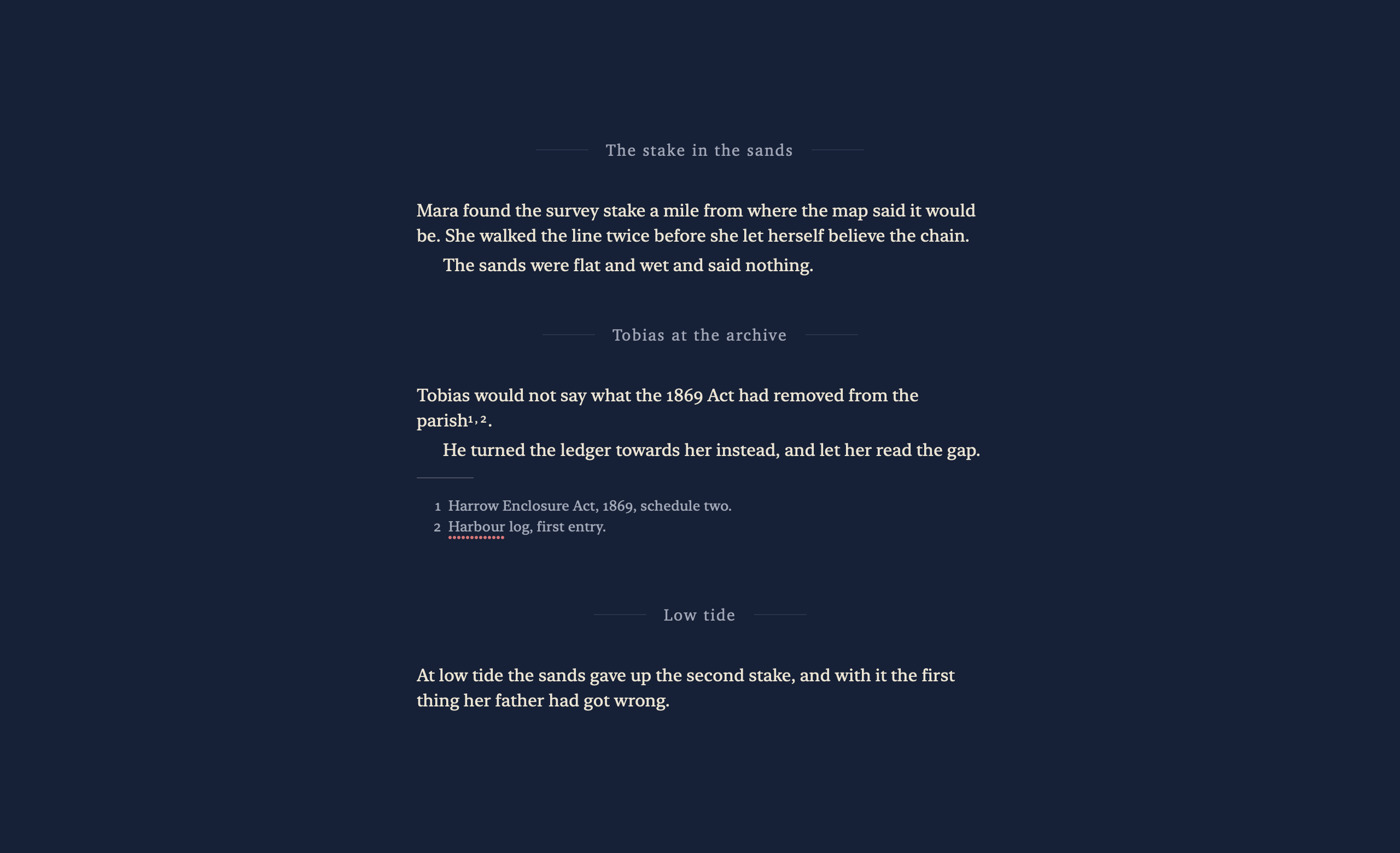
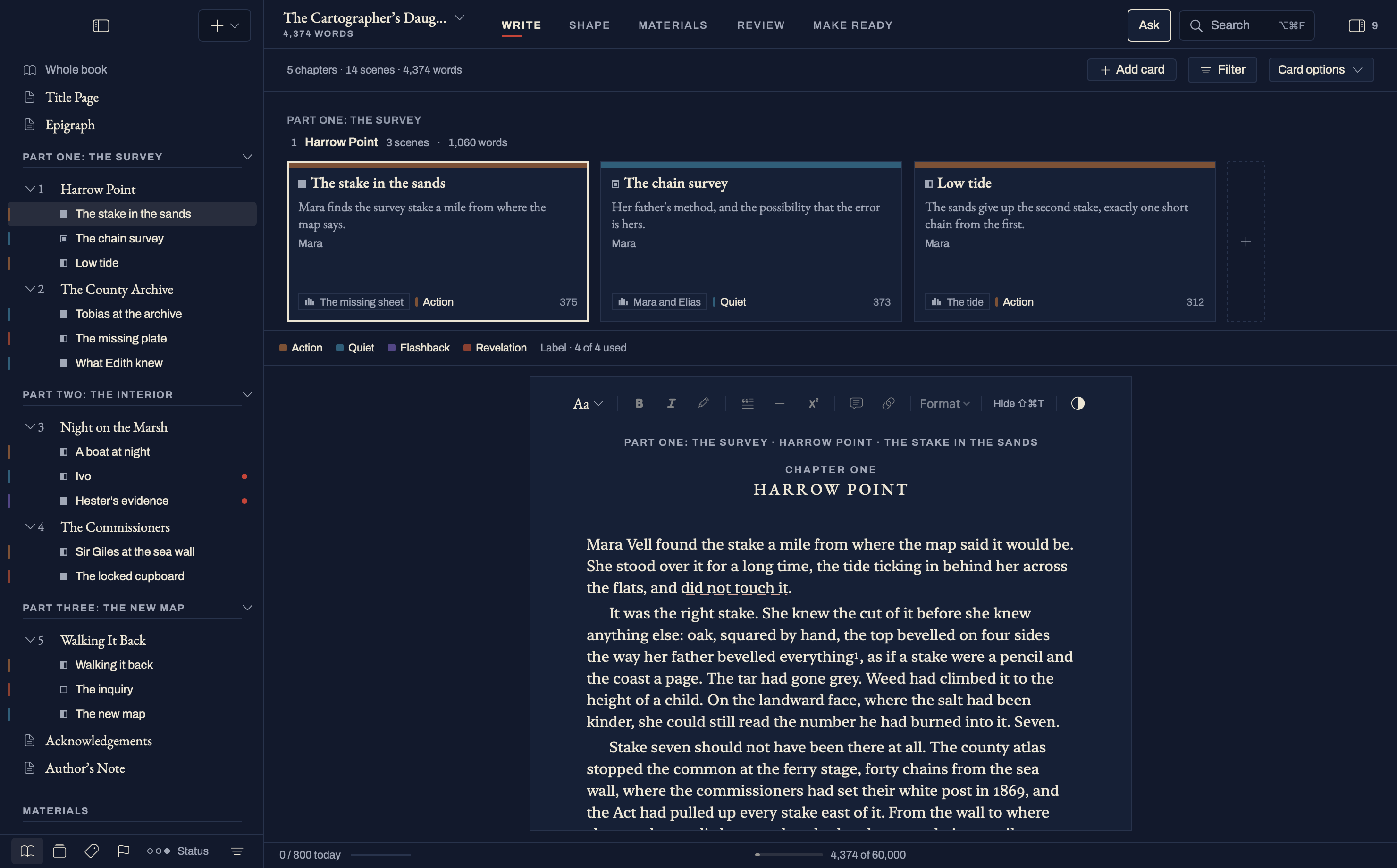
Fig. 1 · Chapter 1, three views Try it: switch the view
Ch. 1 · Harrow Point
Chapter One · one page

Harrow Point

{{ s.title }}

{{ s.text }}
Scene 1.{{ s.pos }} {{ s.title }} {{ s.syn }} {{ s.status }} · {{ s.words }} words
TitleSynopsisStatusWords
1.{{ s.pos }} {{ s.title }}{{ s.syn }}{{ s.status }}{{ s.words }}
A sketch of three views of one chapter, using the sample book.
Shared by every viewTitles, book order, synopses, status, labels and the text itself.
Changes with the viewHow much you see at once, and what sits beside it.
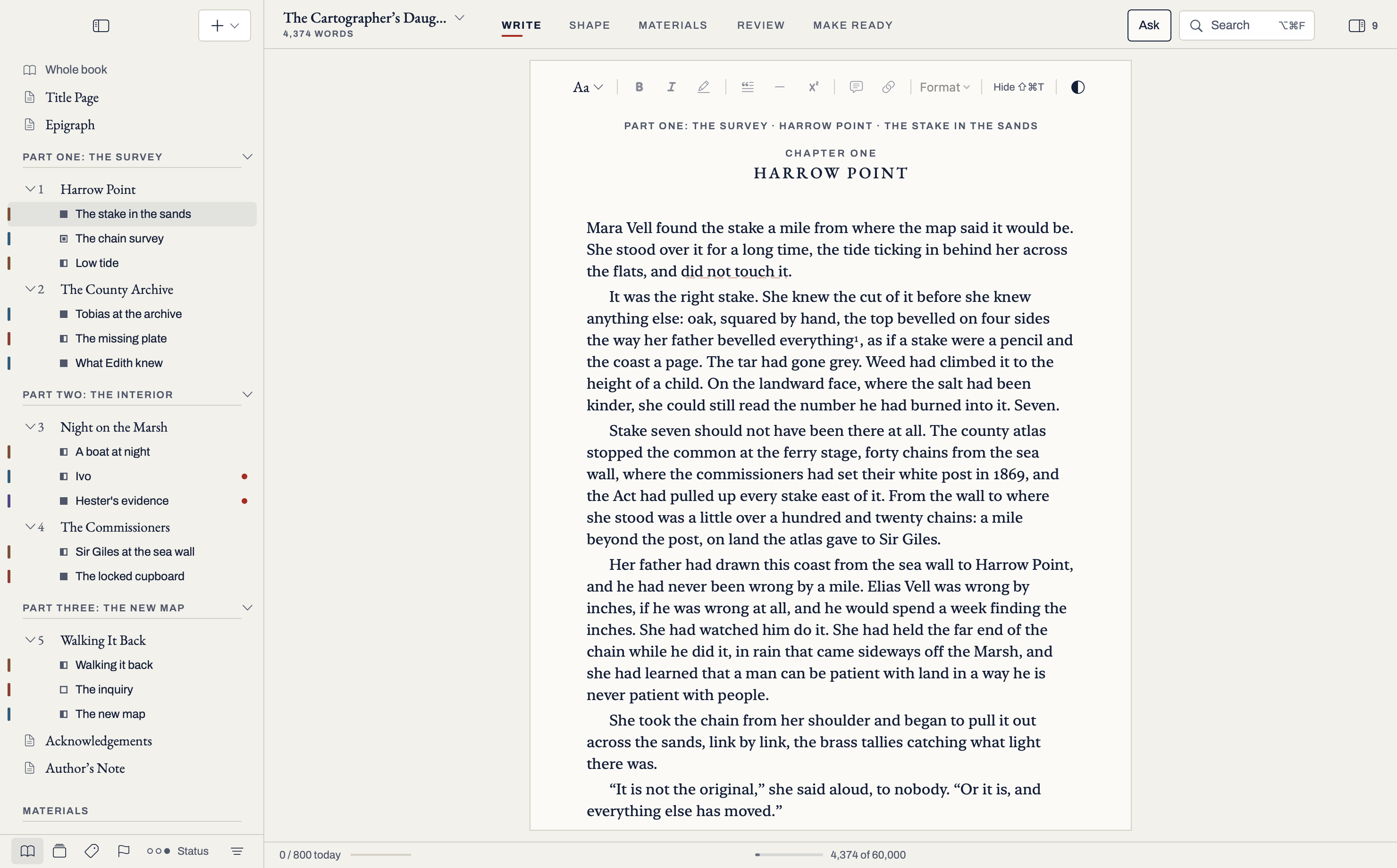
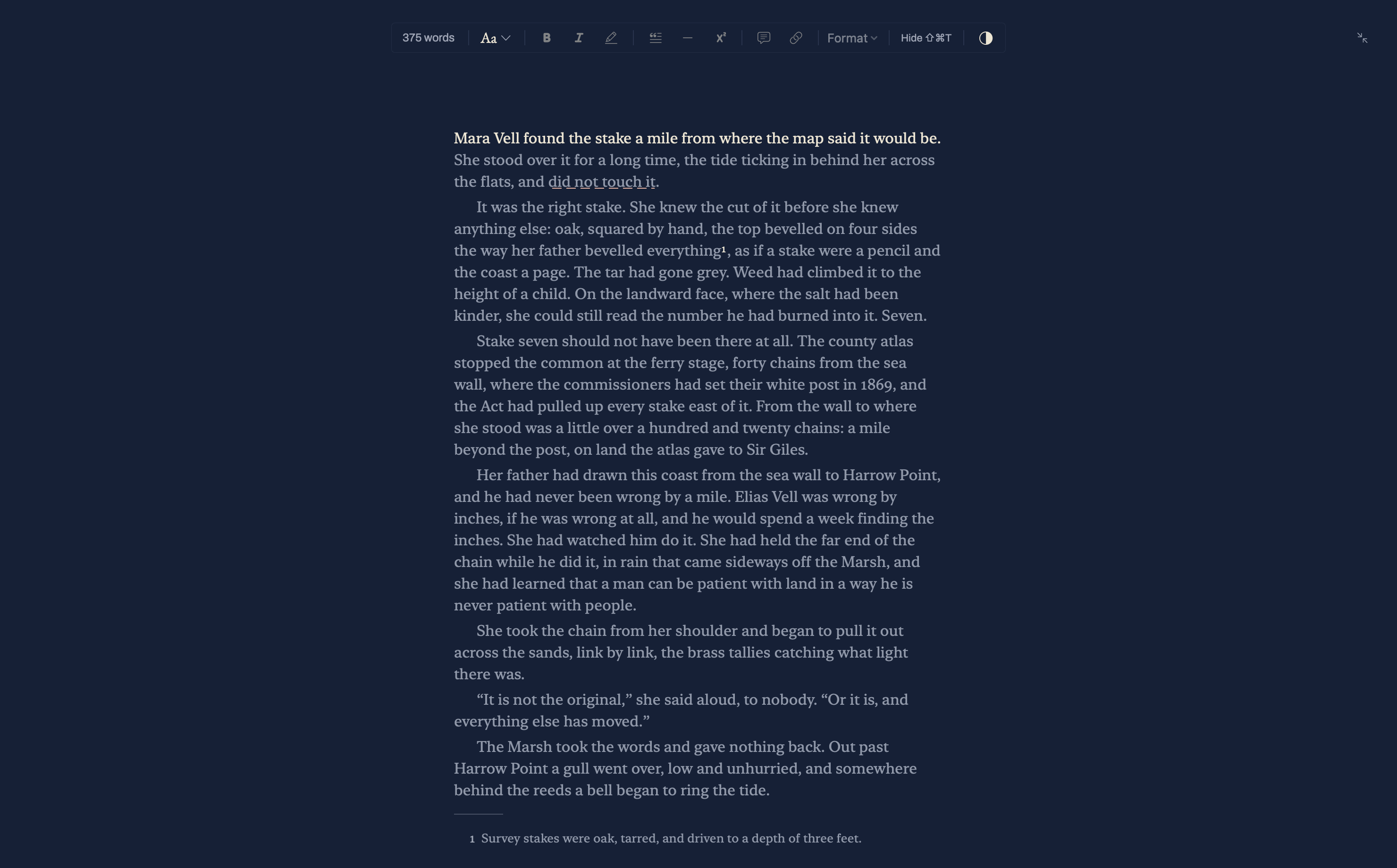
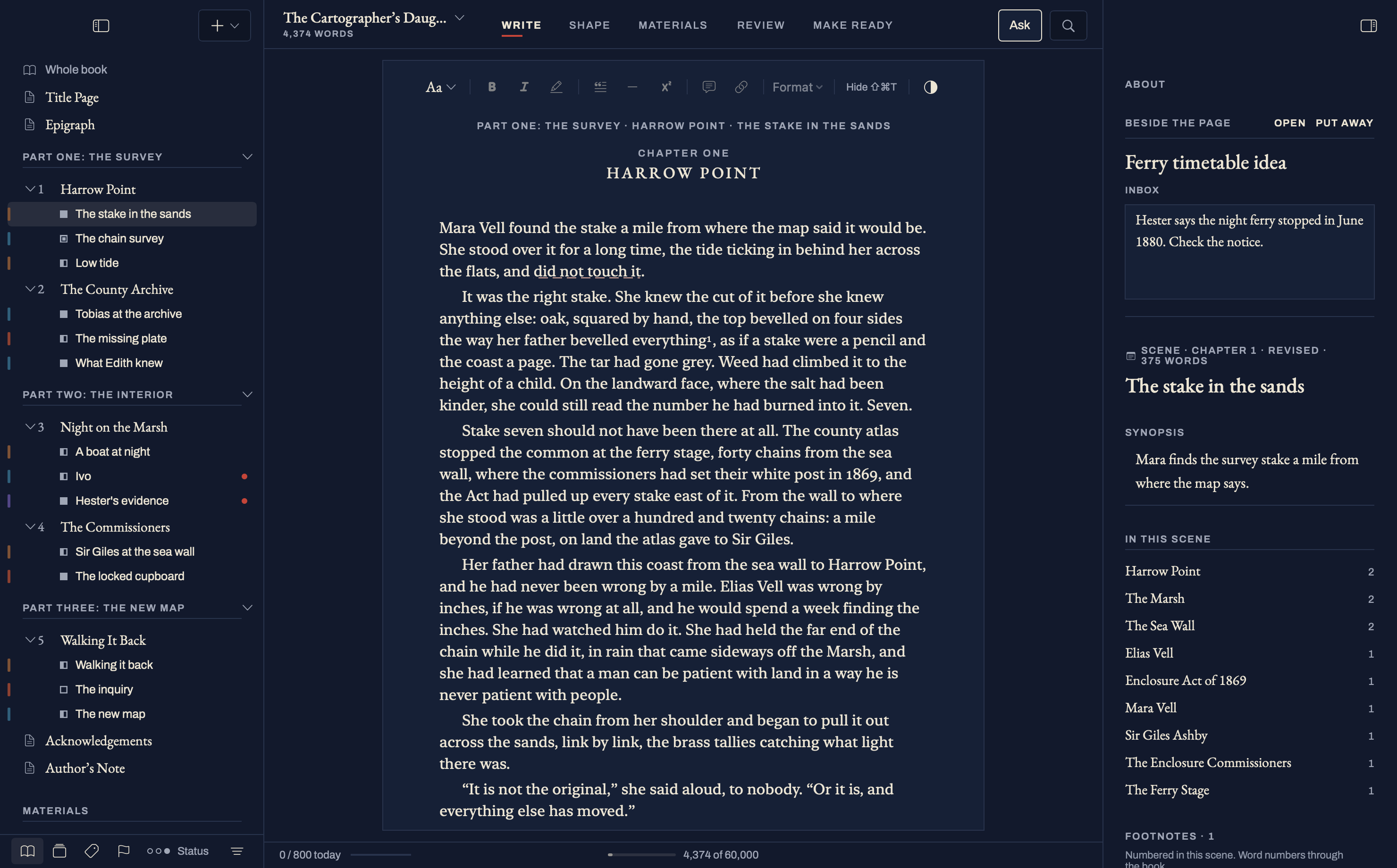
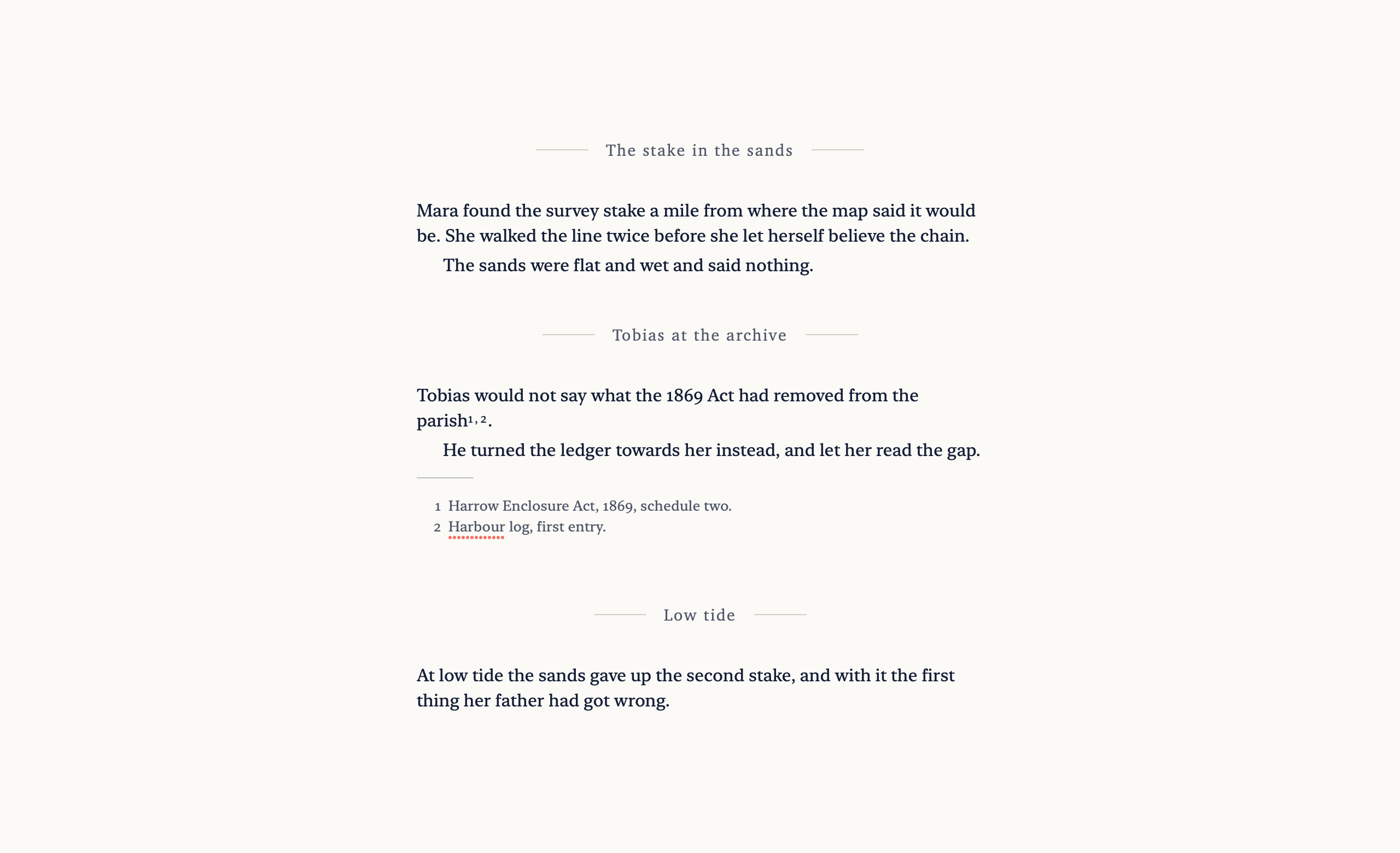
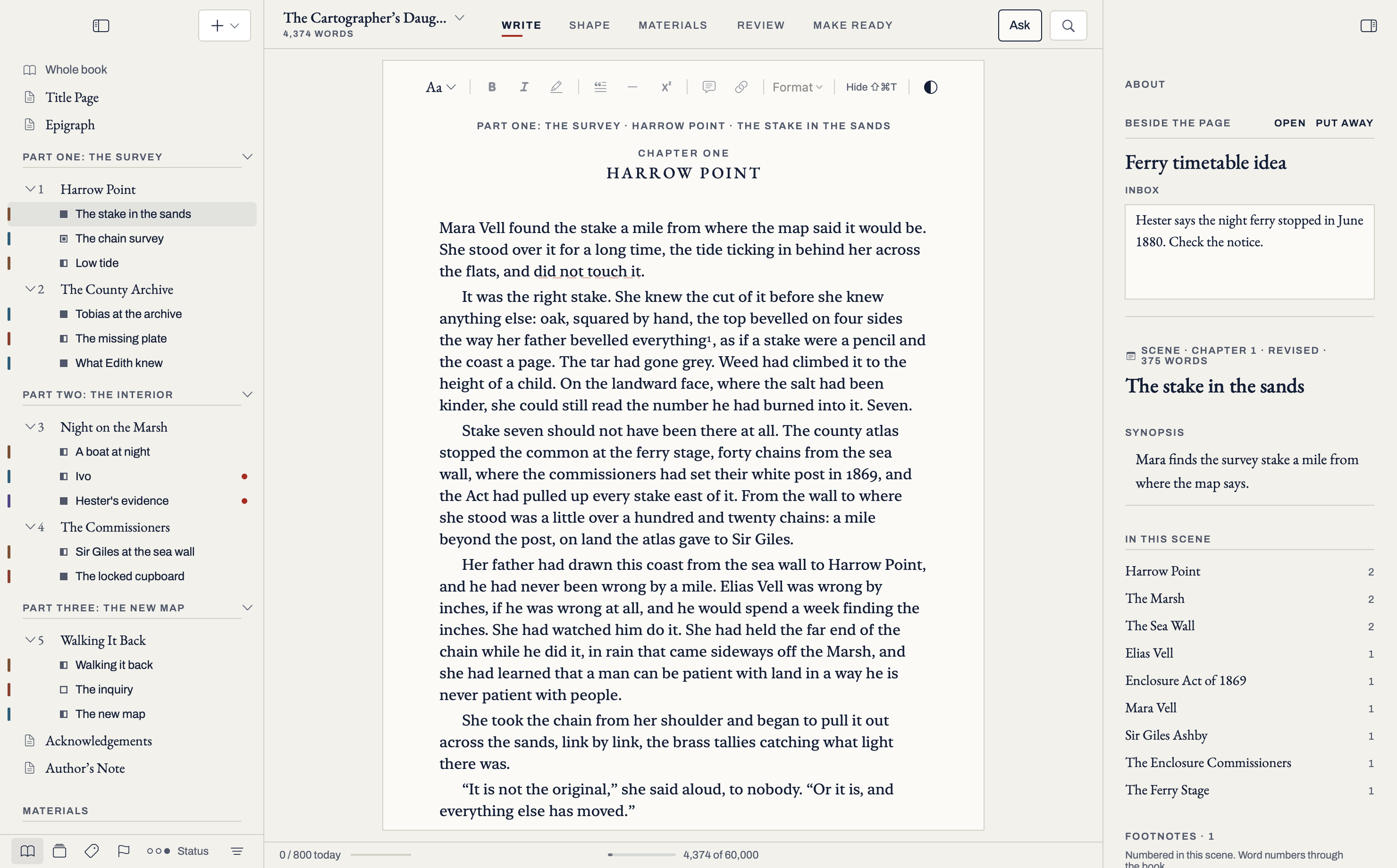
Fig. 2 · A chapter as one page The app, development build A chapter opens as one page you can write in, scene after scene, each with its title between them. A chapter opens as one page you can write in, scene after scene, each with its title between them.
Screen from build 0.9.10, 29 October 2026.
Ch. 2Write

Write in scenes, write the chapter through.

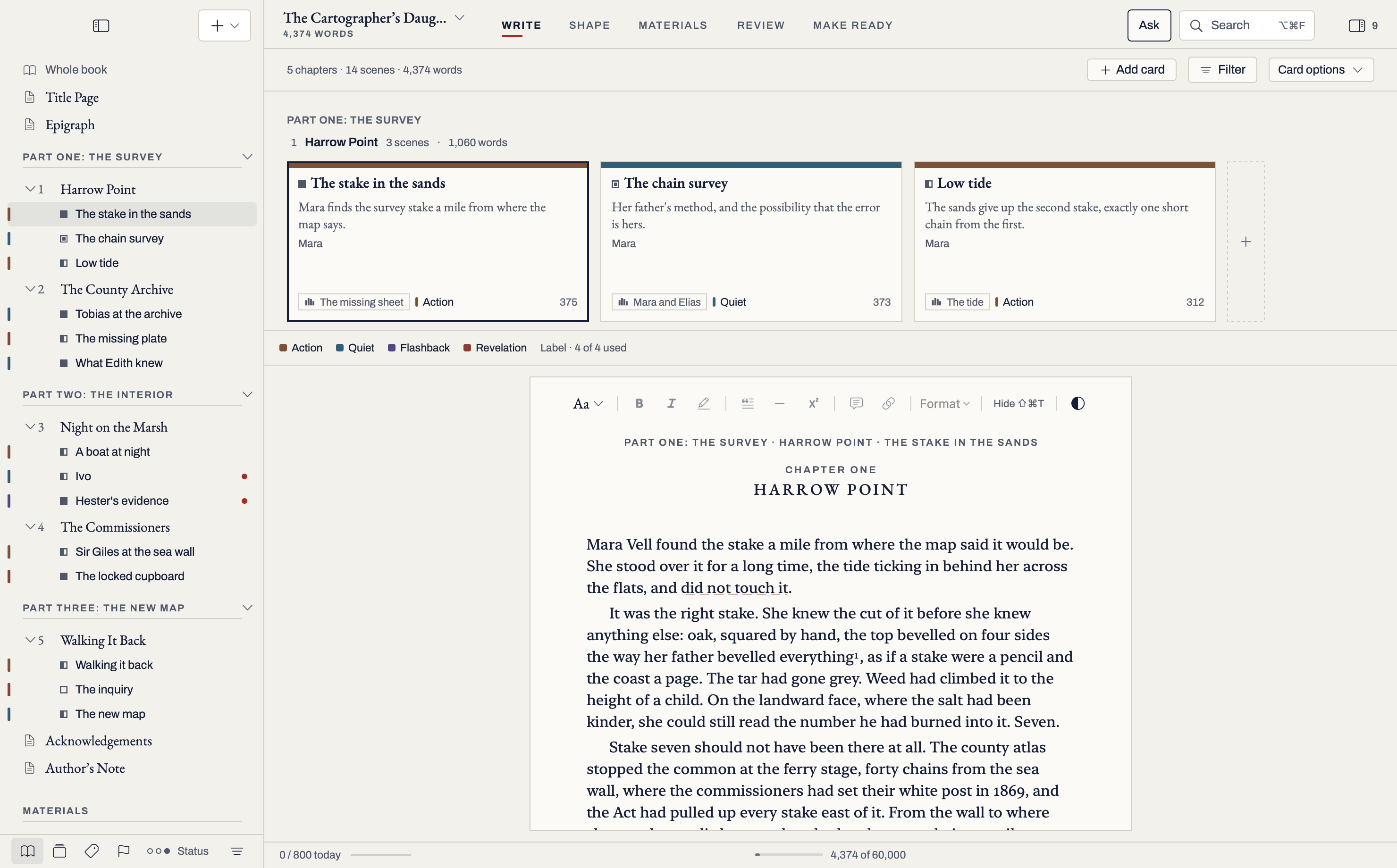
A book is made of parts, chapters and scenes, and your prose lives in scenes. Open a chapter and its scenes run on as one page you can write in, with each scene’s title between them. Each scene stays its own file. Next Scene and Previous Scene (Control-Option-Down and Up) step through the book one scene at a time. A chapter page ends with Next: and the next chapter, or Add a scene, and holds up to 500 scenes; Focus, comments and typewriter scrolling work there too. View › Whole Book (Control-Command-B) does the same for the whole book, with chapter and part headings between the scenes. A chapter with no scenes yet opens on an overview.

The Cartographer’s Daughter
Part One · The Survey 1  Harrow Point The stake in the sands The chain survey Low tide 2  The County Archive Part Two · The Interior 3  Night on the Marsh 4  The Commissioners
PartGroups chapters, if your book has parts.
ChapterHolds scenes in order. Open it to see what is inside, or read it straight through.
SceneWhere the writing happens. A scene can be only a title and a synopsis before it has any prose.
NoteWriting that is kept with the book and never printed.
Saves as you typeThere is no Save button. The status line under the page stays empty while you write; point at it for your place, the word count and Saved. A goal stays in view, and a problem shows at once.
A calm windowOne button at each edge shows or hides the sidebars. Back and Forward appear once you have jumped somewhere. Writing Layout takes the window back to how you like to write, and Keep Verso quiet holds back every suggestion until you ask.
Where to find itBack and Forward are Command-[ and Command-]. Writing Layout is in the View menu. Keep Verso quiet is in Settings › General.
Paragraphs and linesReturn starts a new paragraph, so the page matches what Word, PDF and the ebook print. A book written before this is offered Fix paragraphs, with a snapshot kept first.
The shortcutA new line inside a paragraph is Shift-Return.
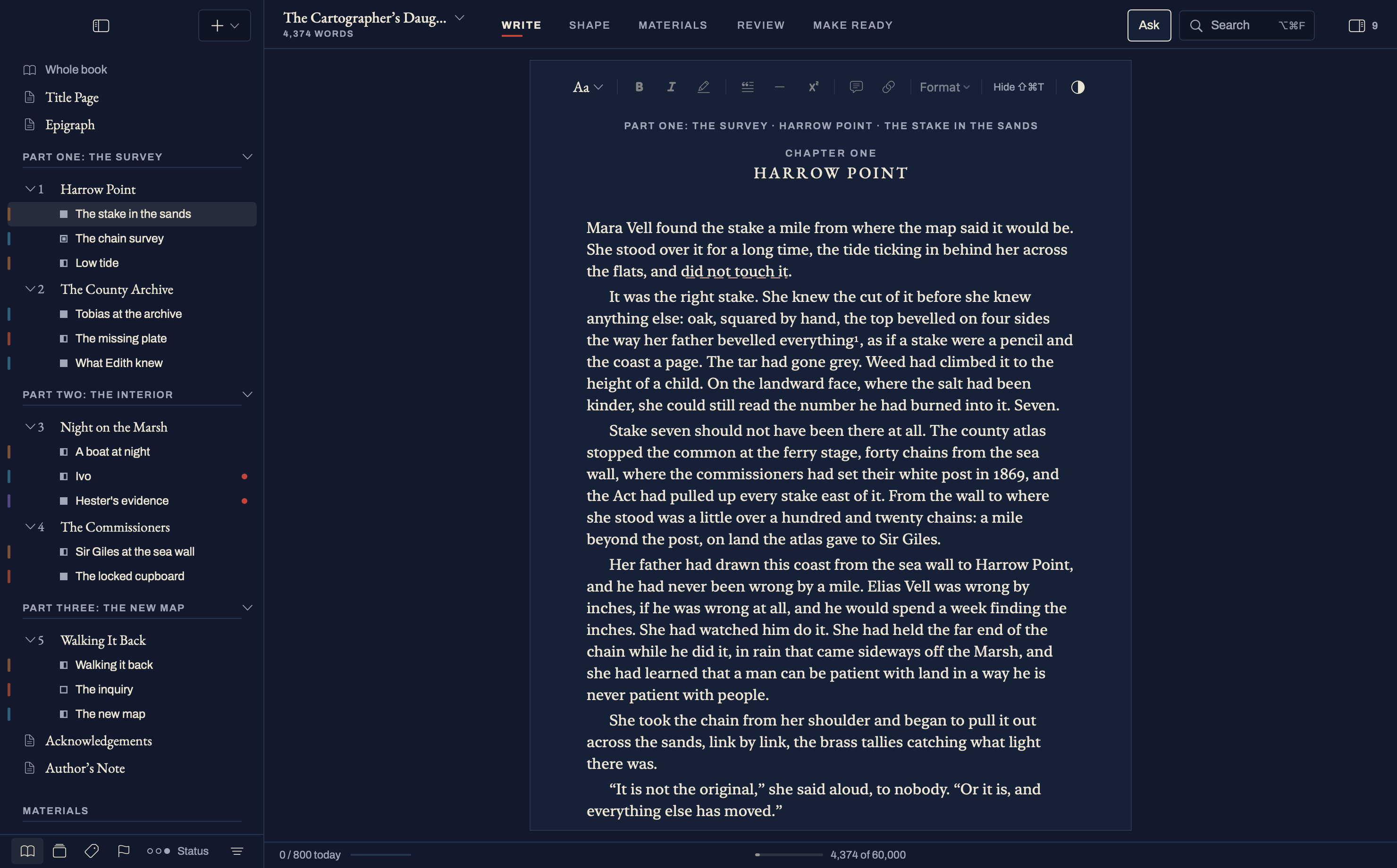
Your page, your typeThirteen typefaces, or any font on your Mac, and four appearances: Paper, White, Grey and Ink. The page can be made bigger, and so can the panels.
Where to find itCommand-plus makes the page bigger. Settings › General › Interface size (Standard, Large or Larger) makes the panels bigger too.
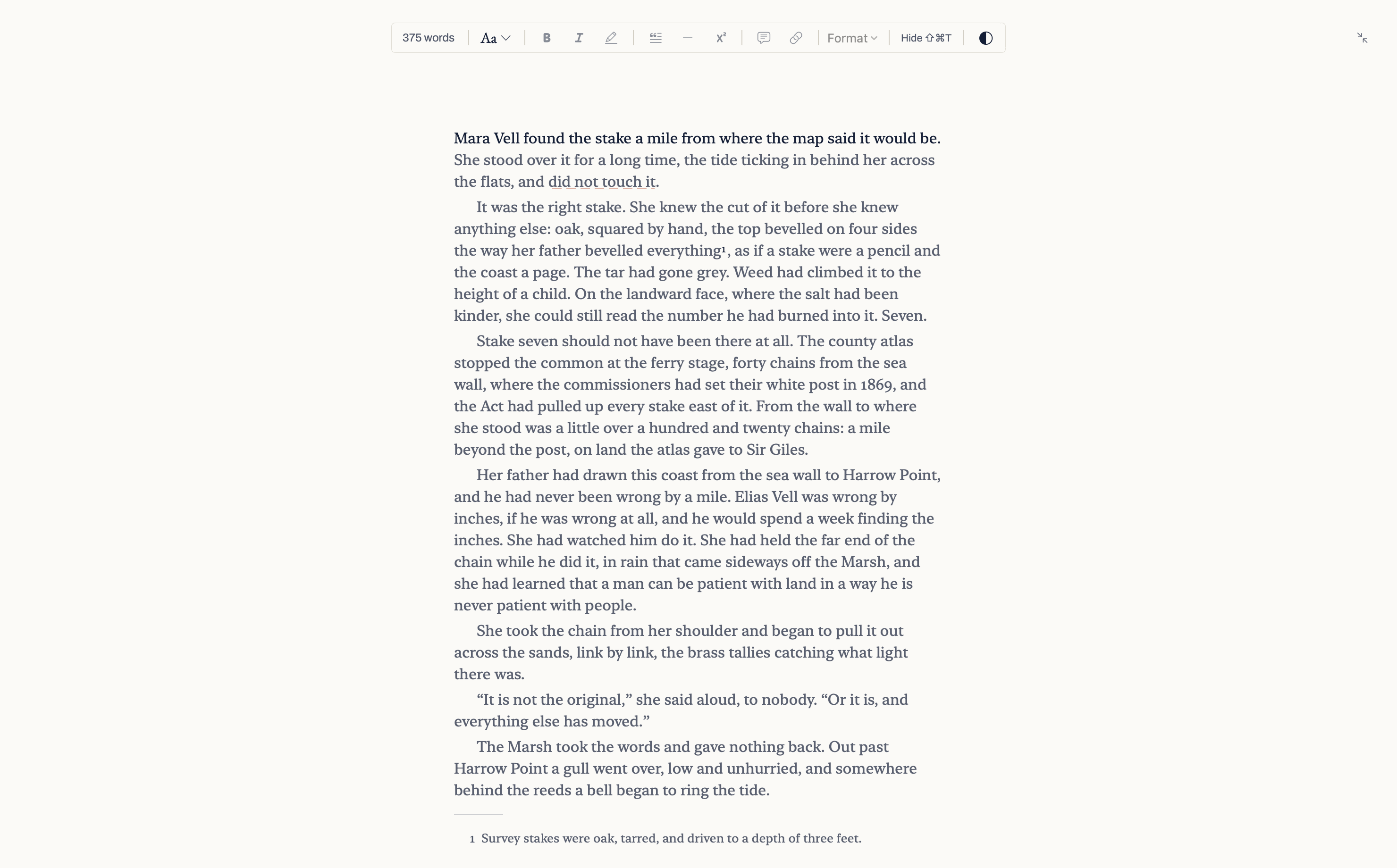
FocusEverything but the page leaves. Dim all but the sentence, the paragraph or the dialogue.
Out of the wayOutside Focus, the toolbar and panels fade while you type and come back when you move the pointer. Both fades are switches.
Where to find itSettings › Writing.
TypographyJustify the page with hyphenation, and use old-style figures where the typeface has them. Justification starts off.
Where to find itBoth are in Settings › Writing.
Text colourGive a book style a colour. Word, PDF and the ebook print it exactly.
Where to find itSettings › Book › Styles.
A quiet startA new book starts with one chapter and one scene, and tools appear as the book needs them. You can show them all from the start.
Where to find itSettings › General › Show every tool from the start.
Names and new scenesAdding a scene or chapter is one step. A new one starts with its name selected, so you type it and press Return. Press Return or double-click a chapter or scene in the contents to rename it later.
Where to find itNew Scene and New Chapter are in the Manuscript menu. Command-Return moves to the page.
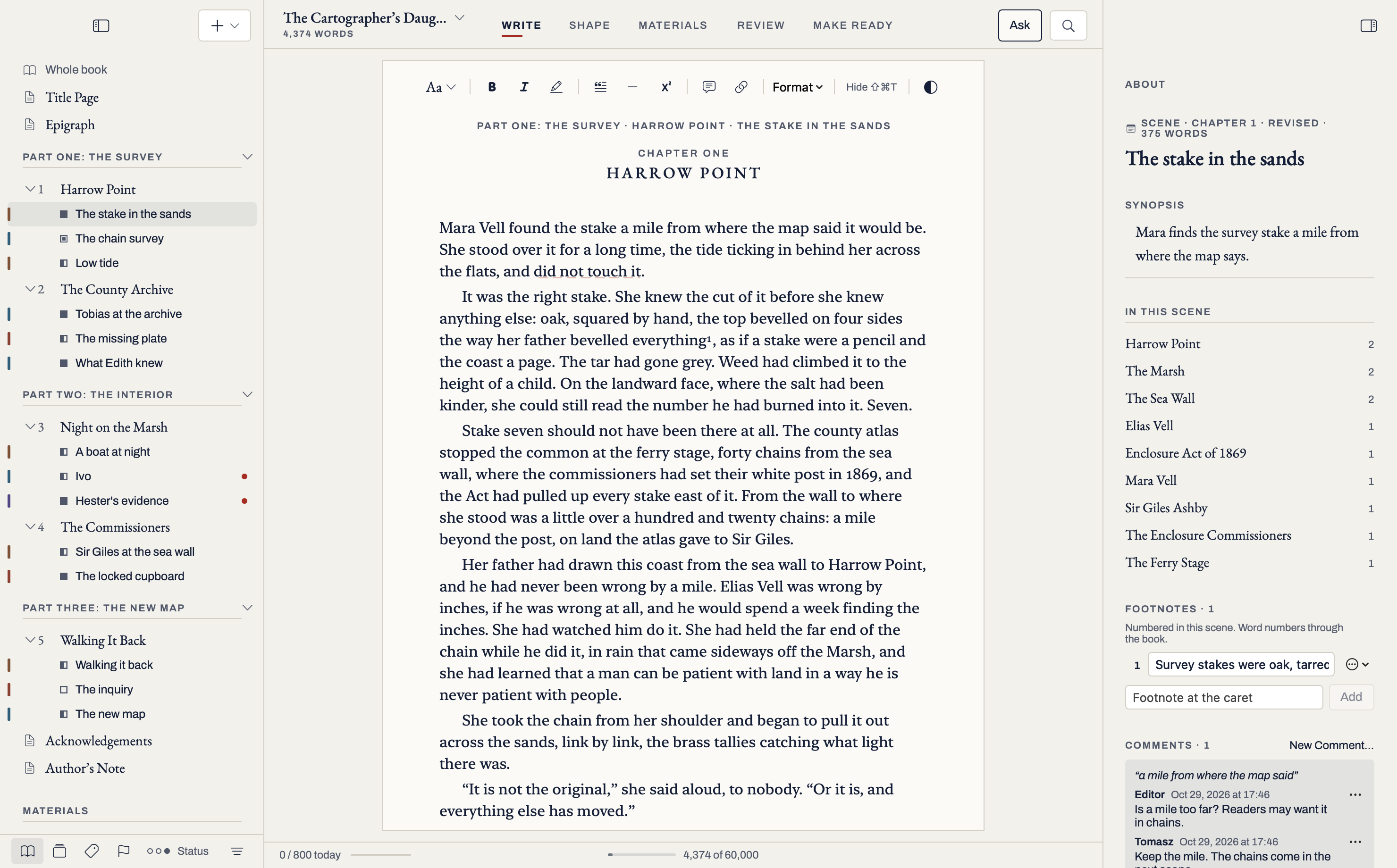
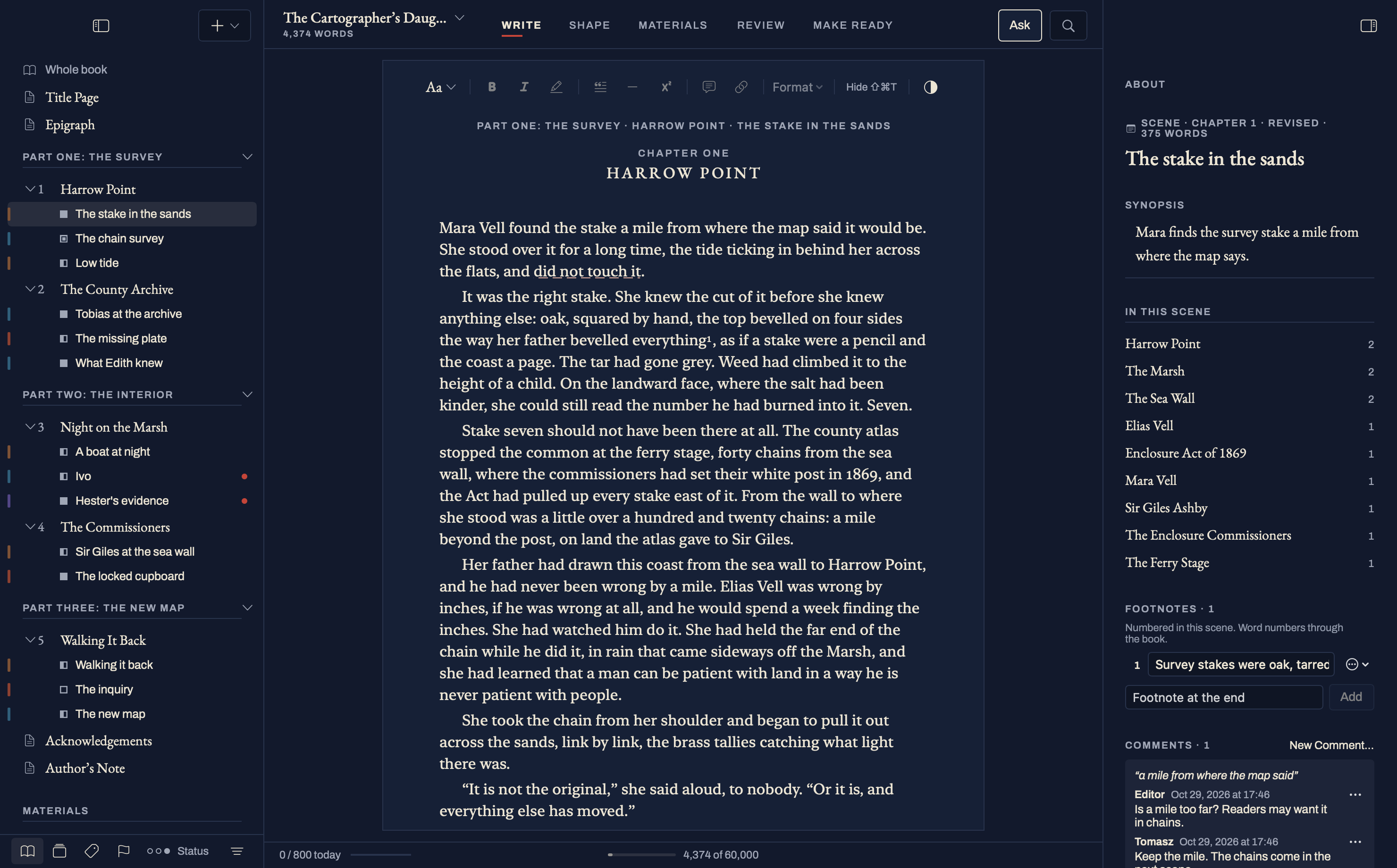
Revise in passesRevision levels mark the new words in each pass. Cut Later marks words to remove without deleting them yet.
Notes on the wordsComments, research flags and named highlights sit on the text and stay out of every file you make.
Quiet goalsA book goal, a goal for each sitting and a writing calendar. No streaks, no alerts.
Footnotes and endnotesNotes sit at the end of each scene, on the page. Rest on a number to read its note, click it to go there. View › Footnotes folds them away. Built, being checked.
SpellingFollows the book’s language. Check Spelling of the Book lists every unknown word in one place.
Fig. 3 · Write The app, development build
Write: navigator, page and context panel. Write: navigator, page and context panel.
Hide the context panel for a wider page. Hide the context panel for a wider page.
Focus: only the page, a word count and a small bar for type, formatting and appearance. Focus: only the page, a word count and a small bar for type, formatting and appearance.
{{ sw_write_cap }}
Ch. 3Shape

Shape when you want to.

Move a scene in book order and the chapter reads in the new order straight away. Undo takes it back. Moving a scene, or several ticked cards together, into another chapter, when that affects story dates, links or open review comments, asks first, and keeps a milestone before it goes ahead. One Undo takes the whole move back.

Fig. 4 · Move, read, undo Try it: pick a scene, move it
Book order · Ch. 1
{{ moveText }}
Chapter One · one page

{{ s.title }}

{{ s.first }}

A sketch of Edit, Move, using the sample book.
ViewWhat it showsChanges the book
CardsChapters as rows and scenes as cards, in book order, with synopses, labels and word counts. Tick several to drag them together, or choose Make a chapter from these.When you drag, or make a chapter
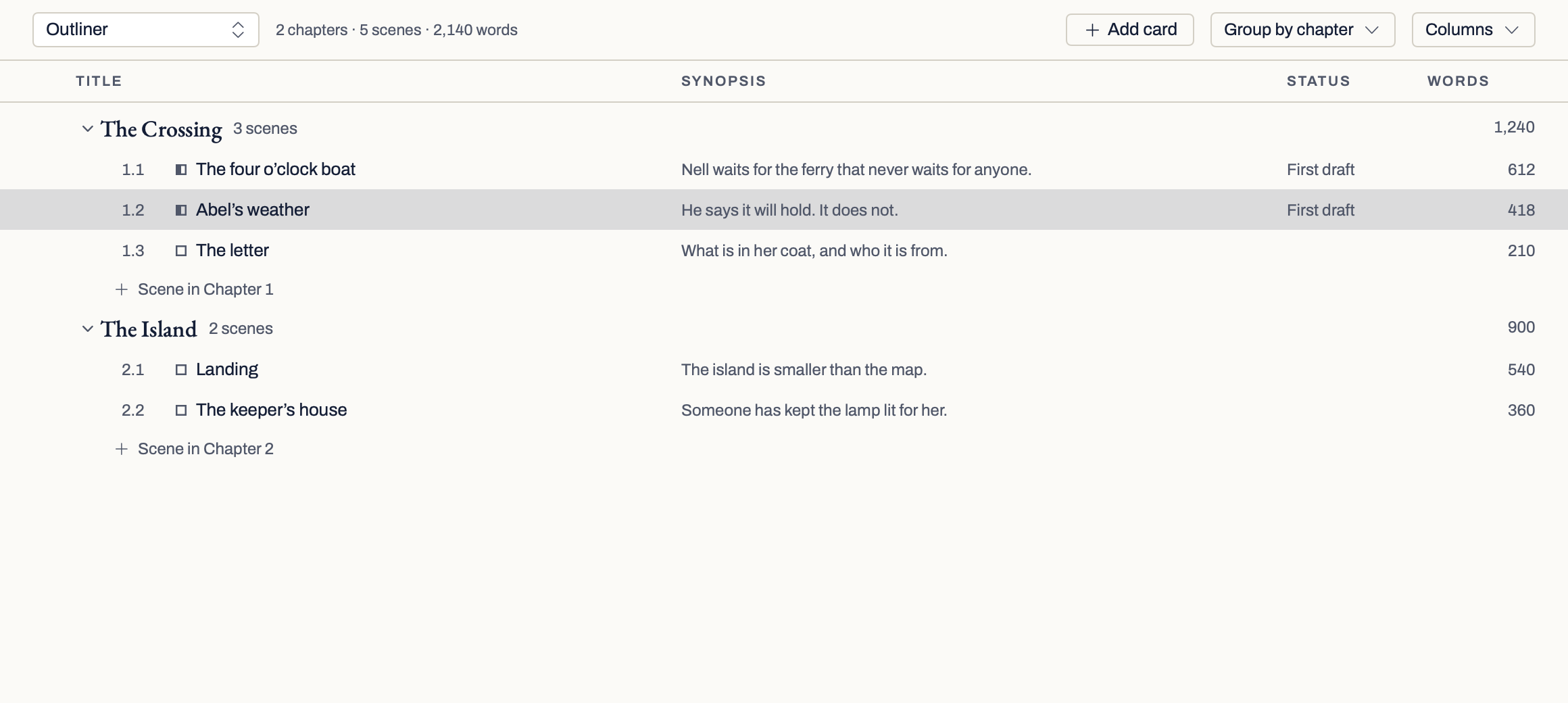
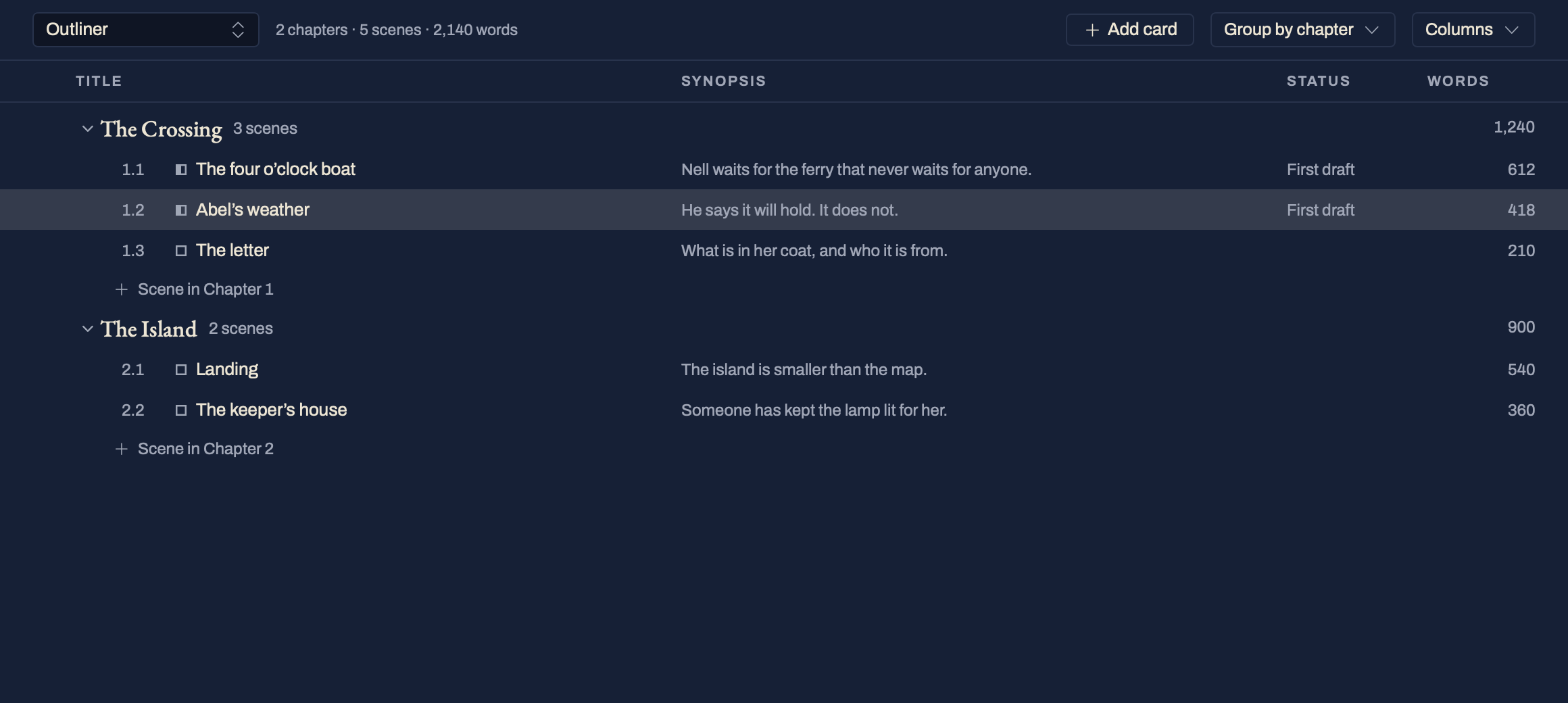
OutlinerA table with the columns you choose. Sorting never changes the order. Set a status, label or field on many scenes at once.When you drag or set
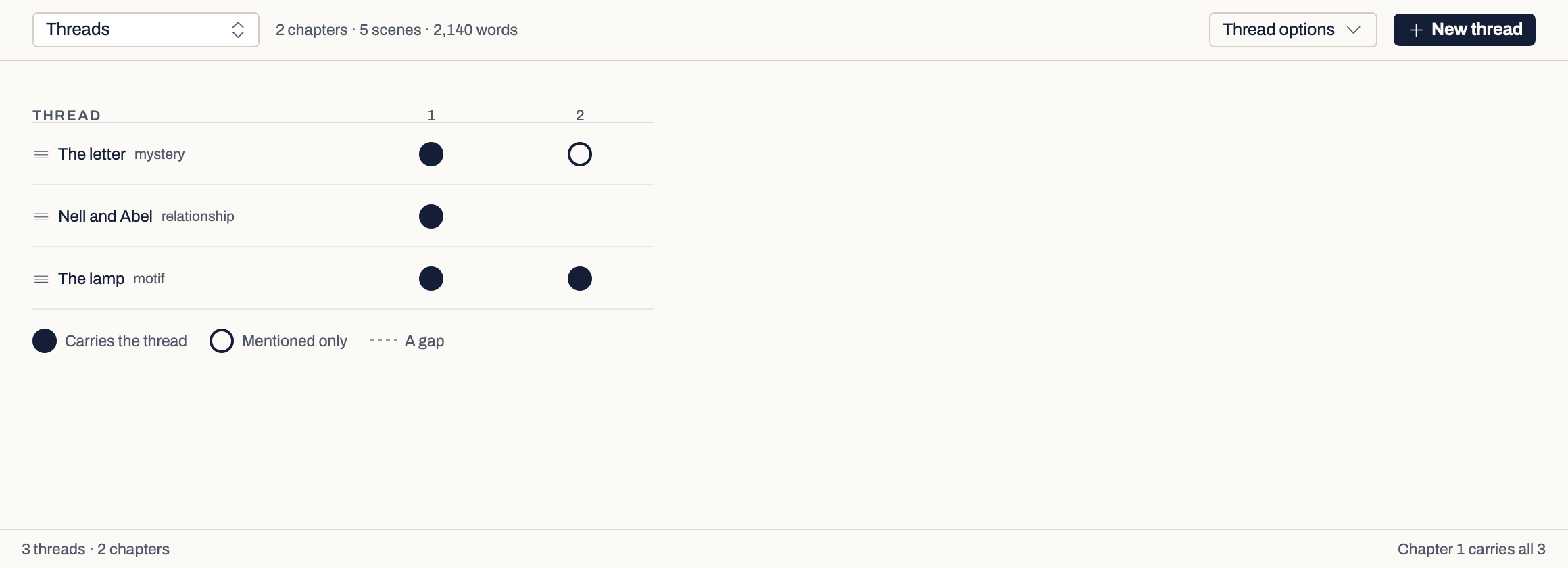
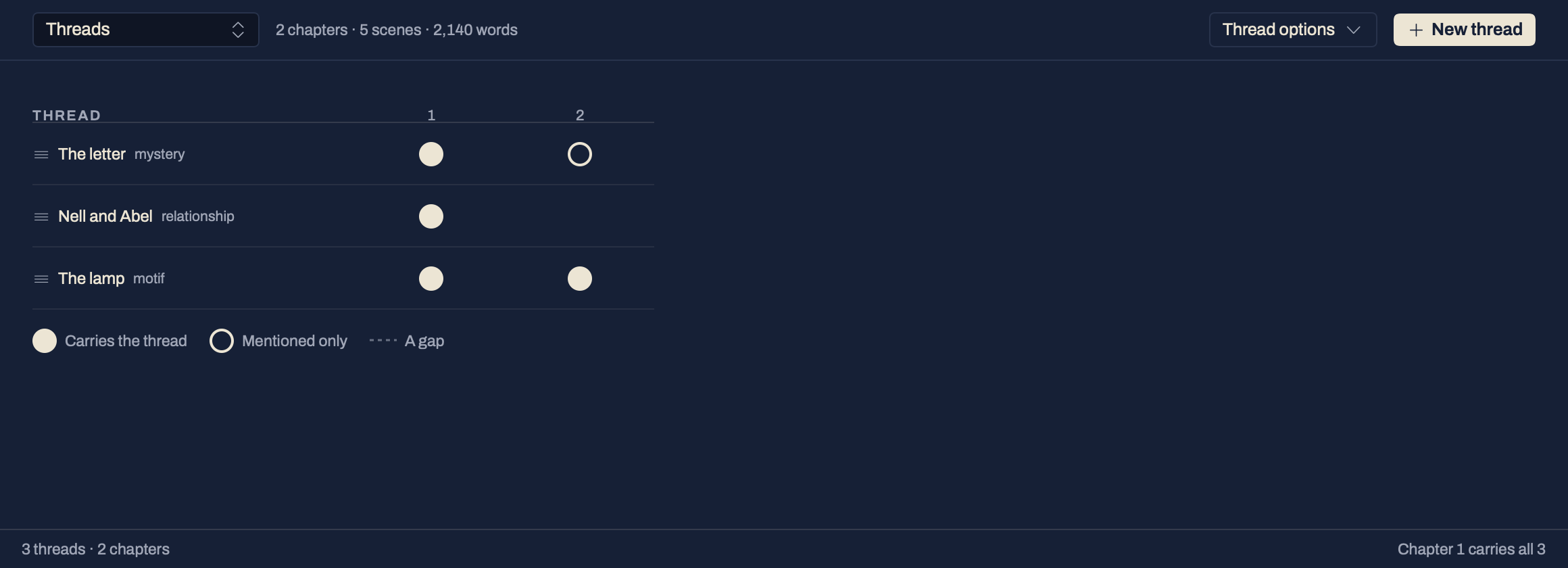
ThreadsYour storylines down the side, chapters or scenes across, with the gaps marked.Only the marks you set
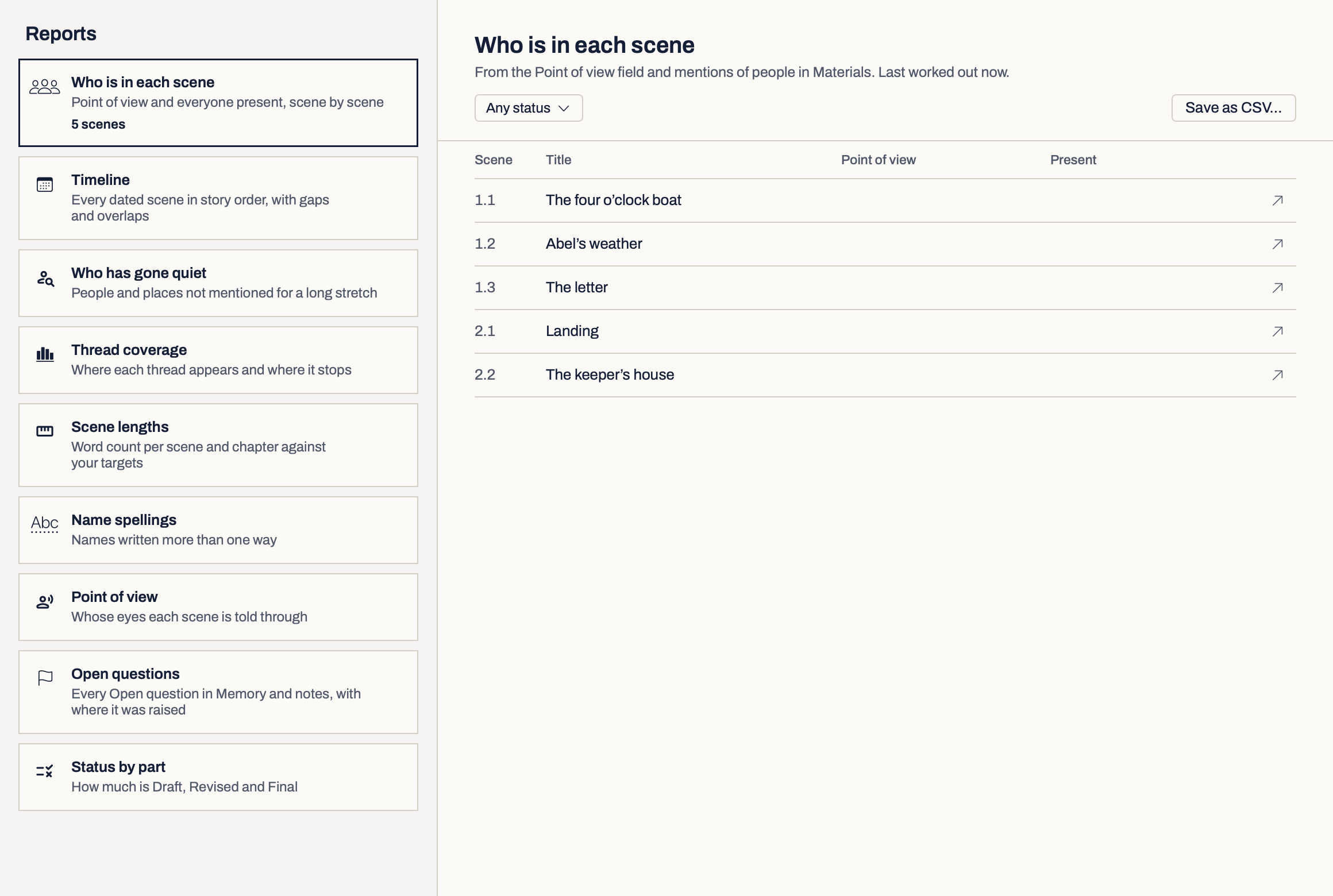
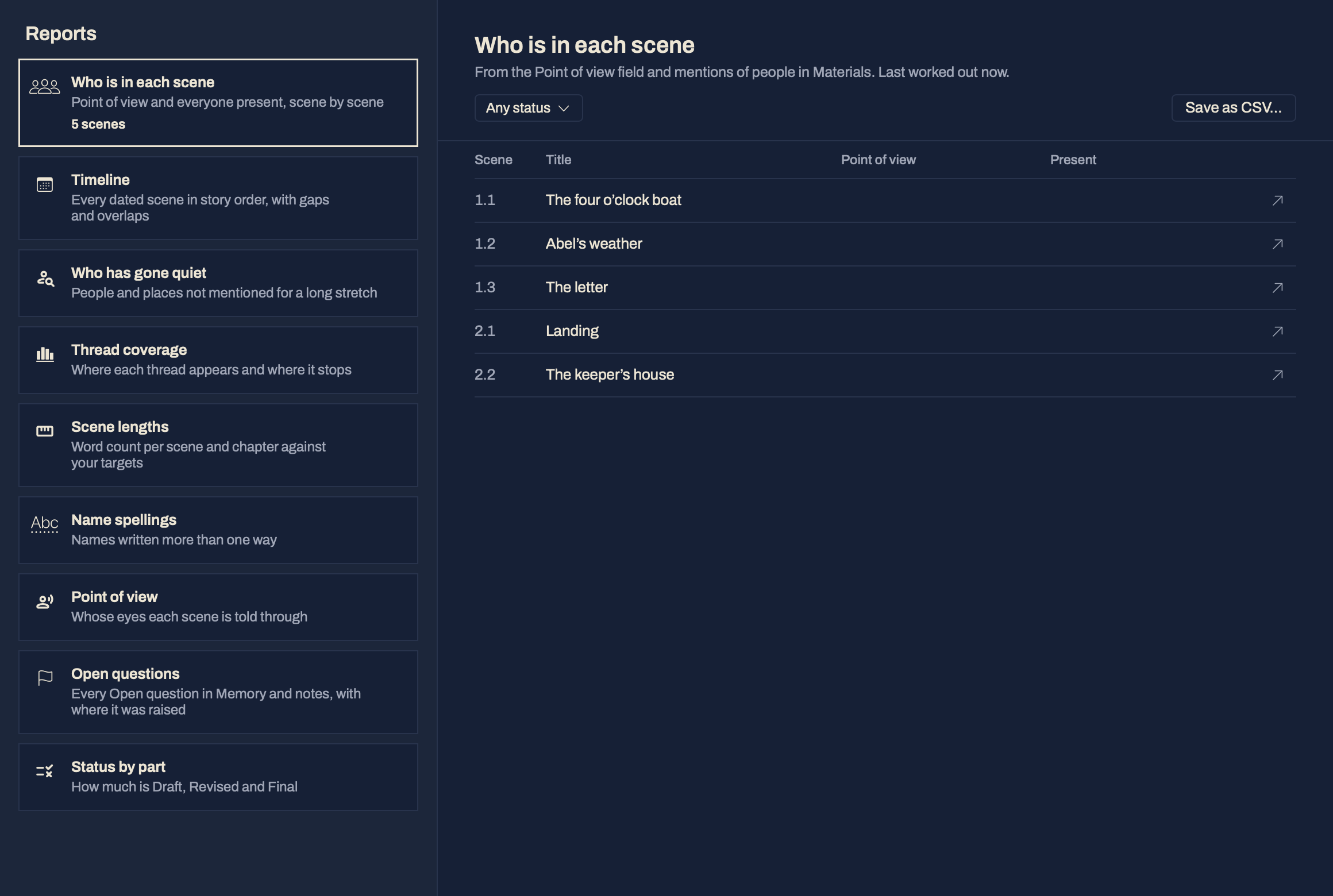
ReportsNine reports worked out from the book, such as who is in each scene, the timeline and name spellings. No model is used.No

Threads joins the views once the book has a thread, and Reports once you open it from View › Reports. Filter shows once the book has a label, a keyword, a field or a second status to narrow by, and Arrange by joins Card options once it has a label. A labelled scene shows a mark in its label’s colour on cards and Outliner rows, whatever the cards are coloured by. View › Layout › Corkboard with Editor and Outliner with Editor put the cards or the outline above the page; drag the line between them, and each book remembers the size. The free board for arranging things is in Materials.
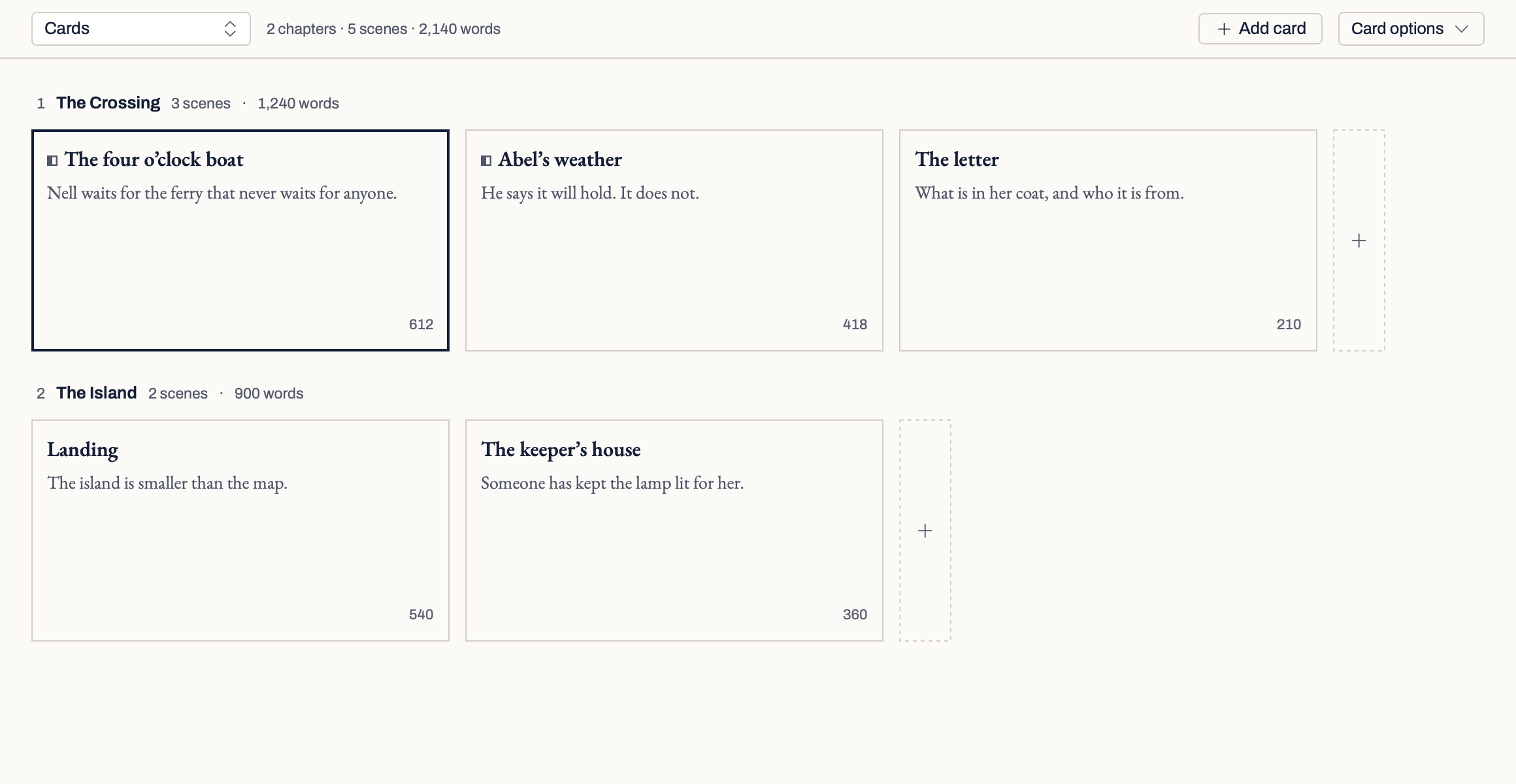
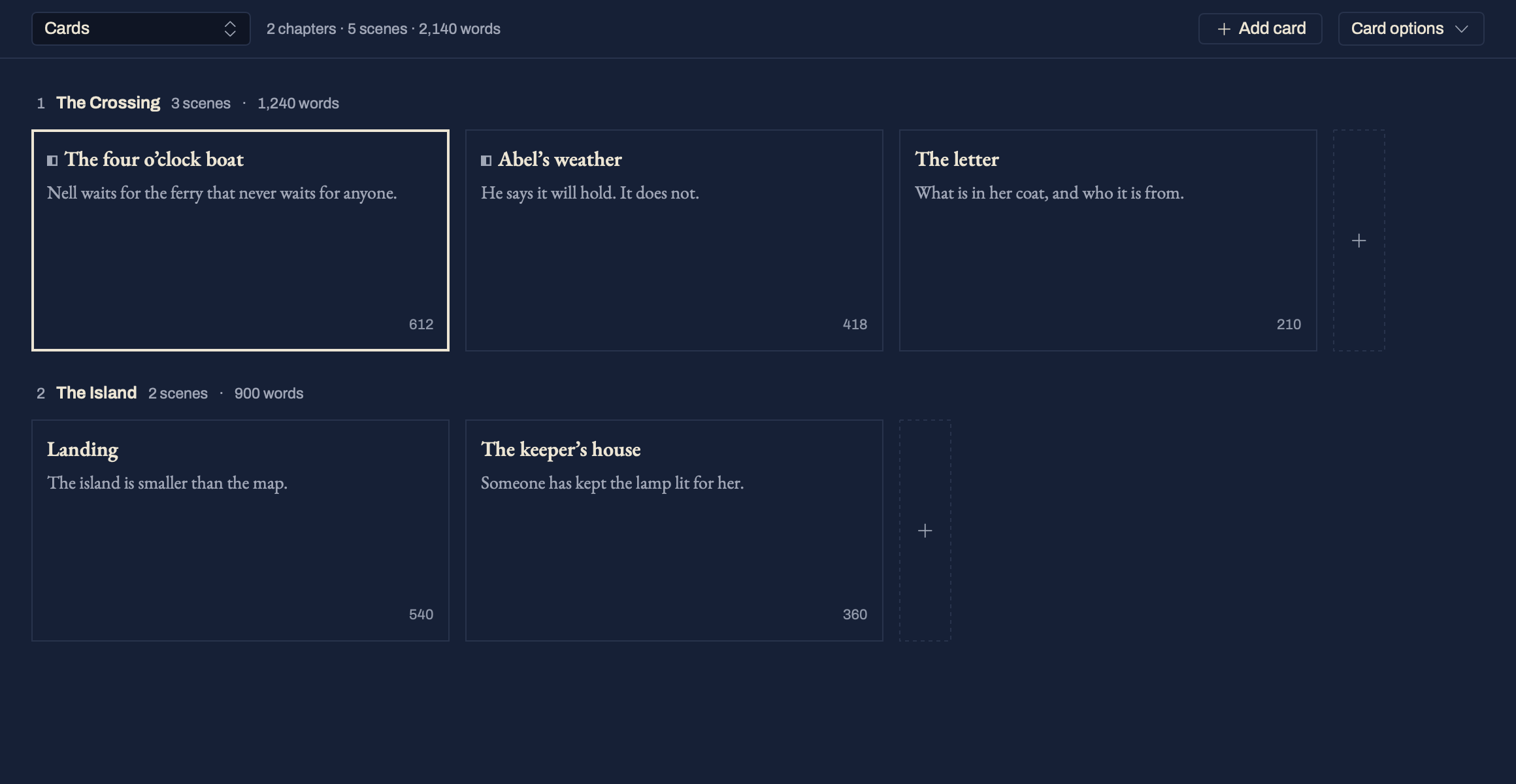
Fig. 5 · Shape The app, development build
Cards: chapters as rows, scenes as cards in book order, each with its synopsis and word count. Cards: chapters as rows, scenes as cards in book order, each with its synopsis and word count.
Outliner: one row per scene or chapter, with the columns you choose. Outliner: one row per scene or chapter, with the columns you choose.
Threads: storylines down the side, chapters across, with the gaps marked. Threads: storylines down the side, chapters across, with the gaps marked.
Reports: worked out from the book, with no model involved. Reports: worked out from the book, with no model involved.
Corkboard with Editor: the cards above the page. Drag the line between them to resize it, double-click it to reset. Corkboard with Editor: the cards above the page. Drag the line between them to resize it, double-click it to reset.
{{ sw_shape_cap }}
Ch. 4Context

Keep context nearby.

Keep a source or a note without filing it first. When it matters to part of the book, choose Use in book and tick the parts and chapters it belongs to. Materials can then show only what is linked to the chapter you were writing. Click a material while you write and it shows beside the page as a preview; Keep beside the page holds it there, and Put away puts it back. A name a scene keeps using is offered as an entry in Materials, made only if you say so; not in a book’s first day, and you can turn the offer off in Settings › Writing. You make every link.

Materials & Search →
Fig. 6 · Use in book Try it: tick a chapter
ImageSources · Photographs
The seventh stake Oak, bevelled on four sides, the number burned in. Added from this Mac; the file is kept in the book.
Use The seventh stake in…
Show

{{ forHead }}

{{ m.kind }} {{ m.title }} {{ m.note }}

No materials linked to this chapter.
A sketch of Use in book, using the sample book.
Fig. 7 · Beside the page The app, development build A note from Materials kept beside the page, with Open and Put away, while a scene stays open in the middle A note from Materials kept beside the page, with Open and Put away, while a scene stays open in the middle
Screen from build 0.9.10, 29 October 2026.
Ch. 5Files

The book remains yours.

A book is an ordinary folder on your Mac, and your prose is plain text inside it. What keeps it safe is set out below.

QuestionAnswerStatus
Where the book livesA .manuscript folder on your Mac. Each scene is a Markdown file, readable without the app, and a short README in every book says what is where.In the build
SavingAs you type, and again whenever you move to another scene or close the window.In the build
BackupsA zipped copy when you open or close a changed book, or when you choose Back Up Now. Kept hourly for a day, daily for a month and weekly for a year, on your Mac, outside the book. Restoring makes a new book beside the old one.In the build
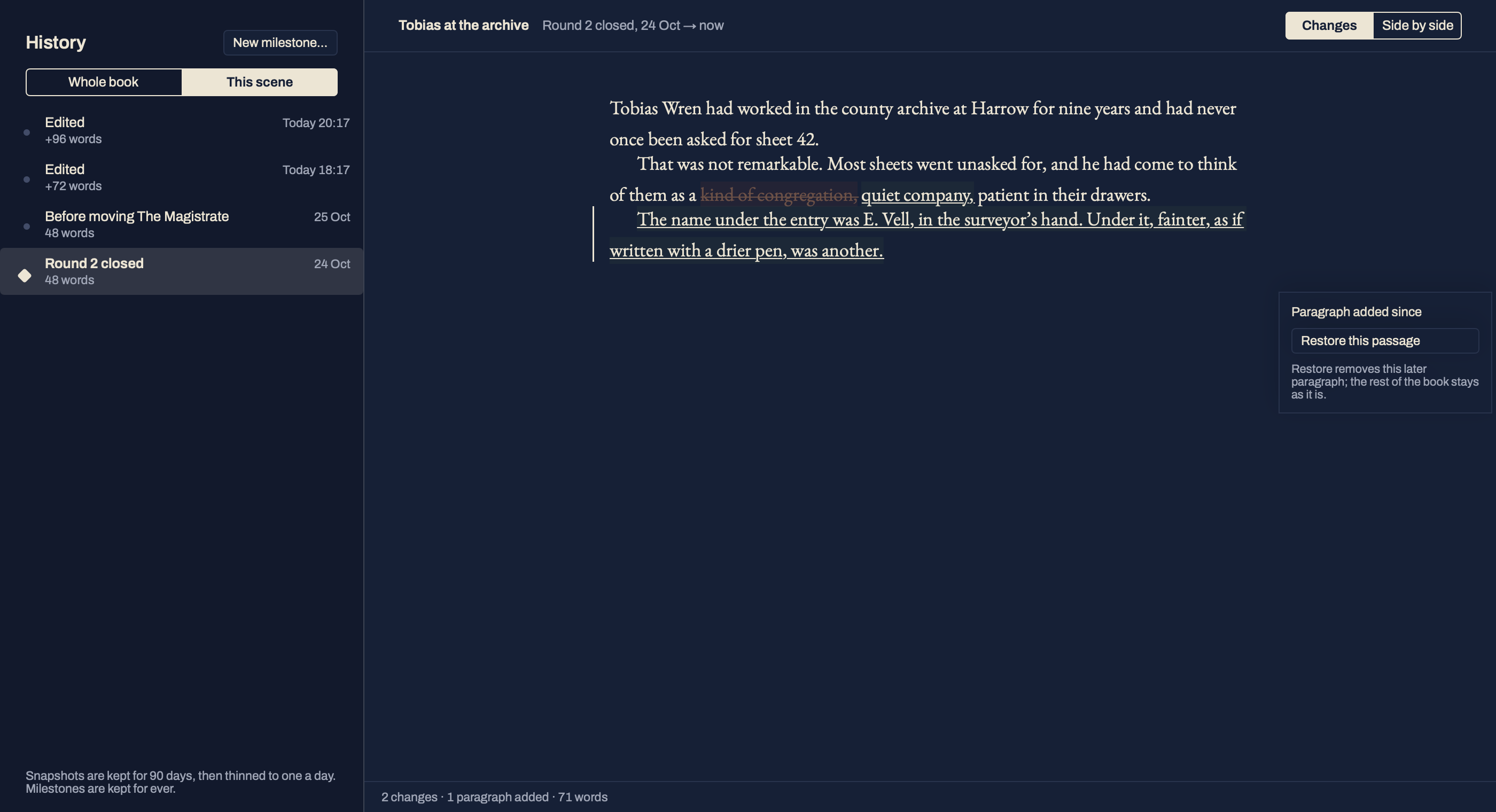
Earlier versionsSnapshots of a scene to compare and restore, kept by you and, before the first change to a scene in each hour, by Verso. Named milestones for the whole book. Restore one paragraph without touching the rest.In the build
An unexpected closeThe next time you open the book, a line says that everything you wrote up to that time is in it.In the build
Sync servicesiCloud Drive, Dropbox, OneDrive and Google Drive are recognised. A book is open to write on one Mac at a time, and another Mac opens it read only. If a service makes a second copy of a scene or of the book’s structure, the status line says so and Compare shows both, to keep yours or use theirs.
The detailA second Mac can open the book to write once the first has been quiet for five minutes.
In the build
A plain-text folderFor writing on an iPad in another app. Choose an empty folder and, while the book is open, Verso writes it there as Markdown, a file per scene, every minute and when it closes. Edits made there come back only through a review you apply, a file you changed there is never overwritten, and Stop leaves the files as they are.
The detailChoose the folder in Settings › Book › Sync. Verso refuses a folder that is not empty and not this book’s.
Built, checking
PrivacyNo usage data or tracking. Nothing leaves your Mac unless you ask: to save a web page, for optional AI after you agree, or for Apple Writing Tools where you allow them.In the build

“In the build” means it is in the current development build, as of {{ vmStatusDate }}.
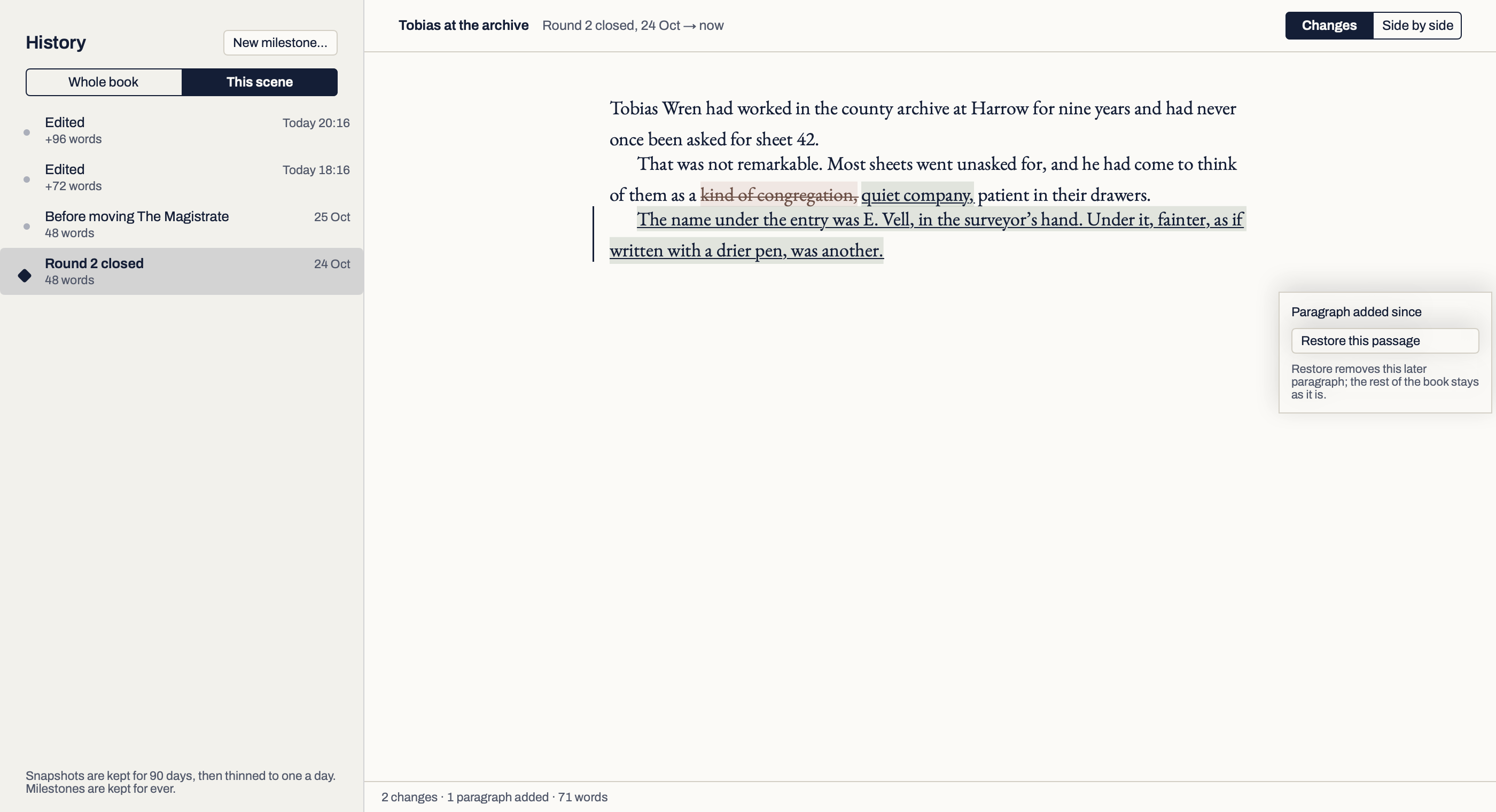
Fig. 8 · History The app, development build History for one scene: two Edited snapshots Verso kept as the scene was written, one from before a move and the Round 2 milestone, with the changes since that milestone marked on the page and Restore this passage beside the added paragraph. History for one scene: two Edited snapshots Verso kept as the scene was written, one from before a move and the Round 2 milestone, with the changes since that milestone marked on the page and Restore this passage beside the added paragraph.
Screen from build 0.9.10, 29 October 2026.
Ch. 6Later

Ready, and not yet.

What the development build does, and what it does not do yet.

Built, being checked · ReviewSend an editor a Word file, or readers a private browser link, and bring their changes and comments back, one decision at a time. Review
Built · Make ReadyEight outcomes, from an editor’s Word file to an EPUB 3 ebook and a PDF/X print interior. Check an ebook with EPUBCheck before a store. Make Ready
Optional, off by default · AIA librarian for the book: Verso AI, or a provider you connect yourself. It finds, checks and remembers, and Review this book offers the people, places and connections it finds. It never writes. About AI
Not built yetUpdating a book from a newer draft, scene by scene. More than one saved window layout to switch between.
Ch. 7Begin

Two starting points.